_1762866128417-DS2_OO1j.png)
Switching does not mean starting from zero
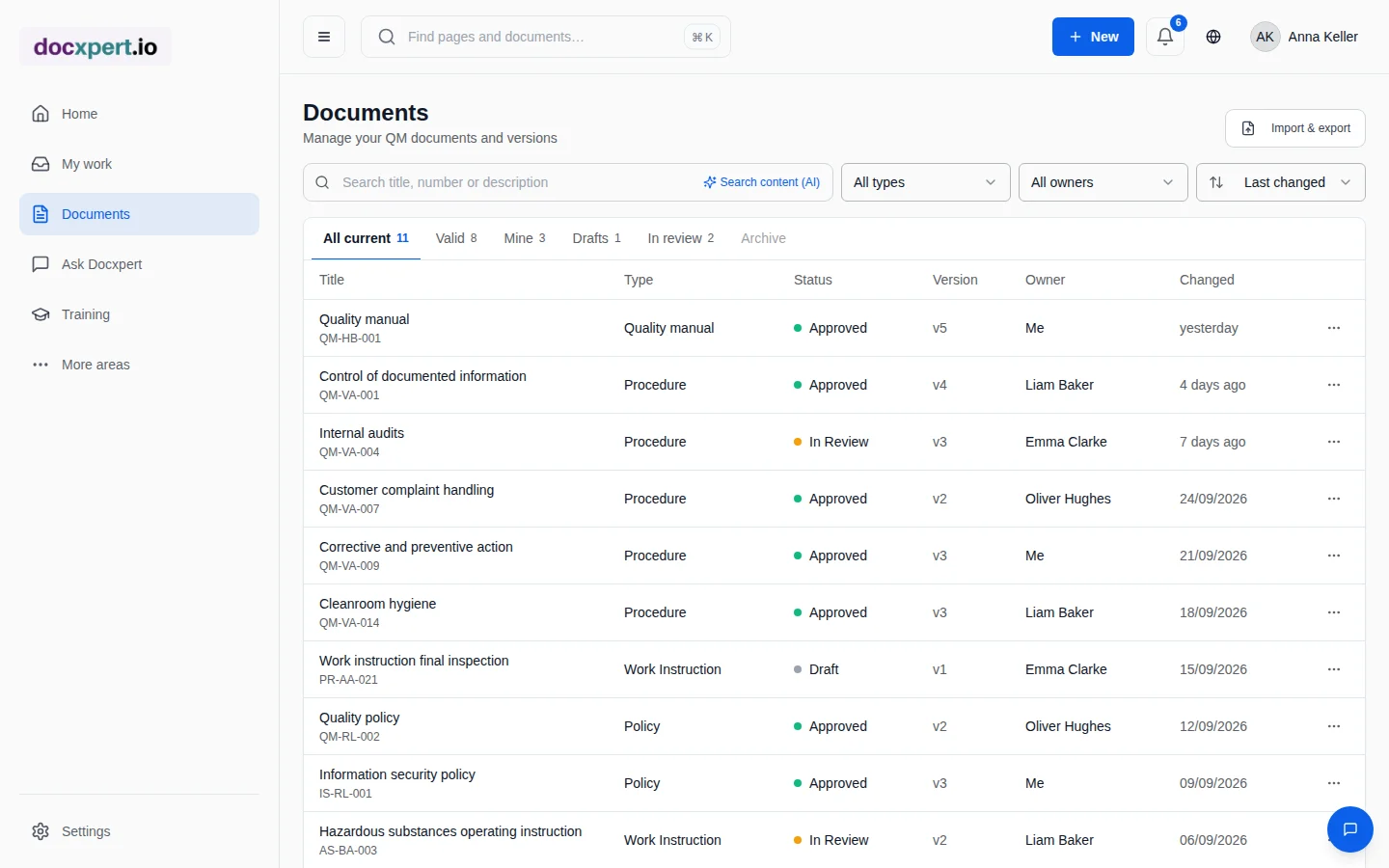
Most companies introducing QMS software already have a management system: procedures in Word, forms in Excel, approved PDFs on the network drive or in SharePoint. These documents are valuable – they describe how the company works. A switch must not lose them.
At the same time, an import is an opportunity to tidy up: duplicate versions, outdated copies and documents without owners stand out and can be cleaned up before they move into the controlled environment.
How the import works
- 1
Choose files
Upload up to 50 files per import – individually or as a ZIP archive – or select folders from SharePoint or Google Drive.
- 2
Get suggestions
For each file, docxpert suggests title, category, document type, process, standard reference, department and owner. Each suggestion shows its origin: file name, content or AI.
- 3
Check duplicates
Identical files and documents with very similar content are flagged – both within the import and against existing documents.
- 4
Review and adjust
You confirm or correct the details per file, skip duplicates and retry individual items if needed.
- 5
Import
Only with your confirmation are the documents created in document control – ready for review and approval.
Features at a glance
Planning the switch
- Inventory: which documents are valid, which are outdated? Only valid documents are imported; old versions can remain in a separate archive.
- Set up the structure: create document types, numbering and departments in docxpert so suggestions map cleanly.
- Import in batches: go area by area – for example management and core processes first, then work instructions and forms.
- Clarify approval status: imported documents go through approval in docxpert once, so evidence is complete from the switch onwards.
- Close gaps: after the import, the gap analysis shows which mandatory documents are still missing.
Protecting data quality during import
An import is a good opportunity to tidy up your document set. Transferring everything as-is also brings along duplicates, outdated forms and documents without a clear owner. Take a moment to review each batch first: is the document still valid? Who owns it? Is there a newer version somewhere else?
| Check | Why it matters |
|---|---|
| Validity | Only currently valid requirements belong in the controlled system; old versions belong in the archive. |
| Ownership | Every document needs an owner, otherwise reviews fall through the cracks. |
| Document type and number | Consistent types and numbering make documents easy to find and reference. |
| Duplicates | Several versions of the same content lead to contradictory requirements. |
| References | References to other documents should point to the new entries after the import. |
The import's suggestions – such as title, type or department – are a starting point, not a final decision. Review them before accepting and correct them where needed. After that, version control and approval apply as for any other document.
Limits and security
| Limit | Value |
|---|---|
| Files per import | up to 50 |
| Size per file | up to 20 MB |
| Size per import | up to 100 MB |
| Entries per ZIP archive | up to 200 |
| Retention of open imports | 7 days |
For cloud import you grant docxpert access to selected sites or folders; only explicitly chosen files are imported. The connection can be removed at any time.
Example: switching from SharePoint
A medical device supplier manages 140 QMS documents in a SharePoint library. The quality manager connects SharePoint, selects the library with the valid documents and imports them in three batches. docxpert detects twelve duplicates – mostly old copies with “final” in the name – and suggests type and standard reference for the remaining documents.
After two days of review, all documents are in docxpert with owners and review cycles. The subsequent ISO 13485 gap analysis shows three missing procedures, which are added from the template library.
Frequently asked questions
Which file formats can I import?
PDF, Word (DOCX) and Excel (XLSX), individually or as a ZIP archive with up to 200 entries.
Can I import directly from SharePoint or Google Drive?
Yes. You connect SharePoint or Google Drive, choose a site or folder and import selected files.
Is metadata applied automatically?
No, it is suggested. Only your confirmation sets title, type, standard reference and owner.
What happens to duplicate documents?
Exact and similar duplicates are flagged. You decide whether to skip the file or import it anyway.
Do imported documents need to be approved again?
A one-time approval in docxpert is recommended. Then all evidence in the system is complete from the switch onwards.
Is the original file kept?
Yes. The imported original file remains available.
How do I check that my document set is complete after migration?
Before importing, create an inventory from the source system with unique identifiers, titles, status, owners and, where available, revision details. Decide which files are active controlled documents, historical records or duplicates. After import, compare expected and actual counts and review a risk-based sample: do files open, do titles and metadata match, are attachments present and can important revisions be found? Pay particular attention to unusual filenames, special characters and documents with several revisions. Record discrepancies in a migration log, assign someone to resolve them and retain the reconciliation as a project record. Imported content should not automatically be treated as current: owners need to confirm status and approval requirements before employees rely on it.